Page Pilot Getting Started Guide | Step-by-Step AccessWhat Is Page Pilot?Page Pilot is FAB Builder's no-code tool for creating in-app guidance — tooltips, banners, and personalized walkthroughs — for your website or app. It's built to help you boost product activation, drive conversions, reduce churn, improve NPS, and cut down on support tickets, without needing a developer to ship changes.
This guide walks you through accessing Page Pilot for the first time and starting your free trial. Step 1: Open any web browser and go to Step 2: In the top navigation bar, click Products to open the product dropdown.
Step 3: In the dropdown, find the Page Pilot card and click it (or click the arrow icon next to it). This opens the Page Pilot product page. 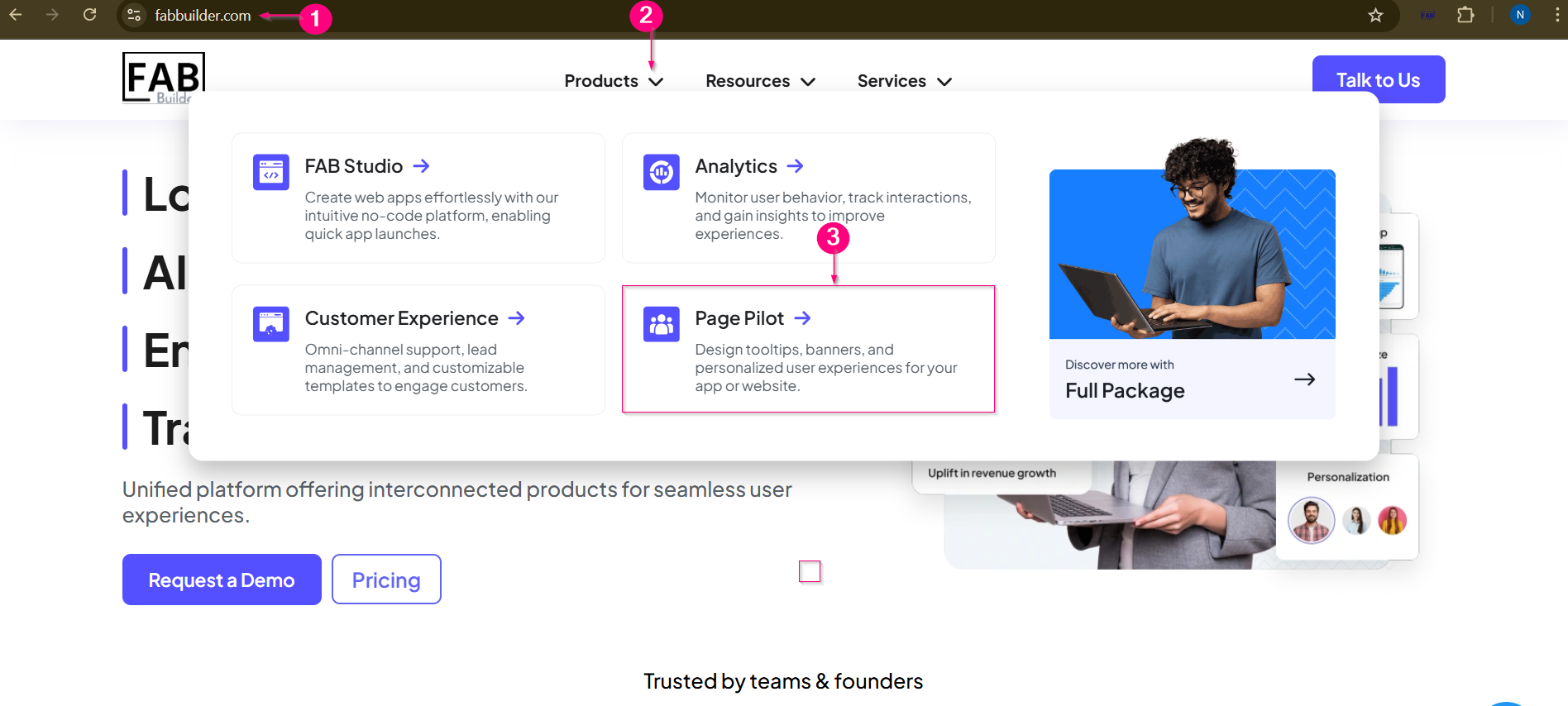 Products menu → Page Pilot option in the dropdown Tip: The Products drop-down also lists FAB Studio, Analytics, and Customer Experience — if you're not sure Page Pilot is the right fit, this is a quick way to compare all four products. Step 4: On the Page Pilot page, click Try for Free. This opens the sign-up/sign-in screen where you'll create your account (no credit card required to start the trial). 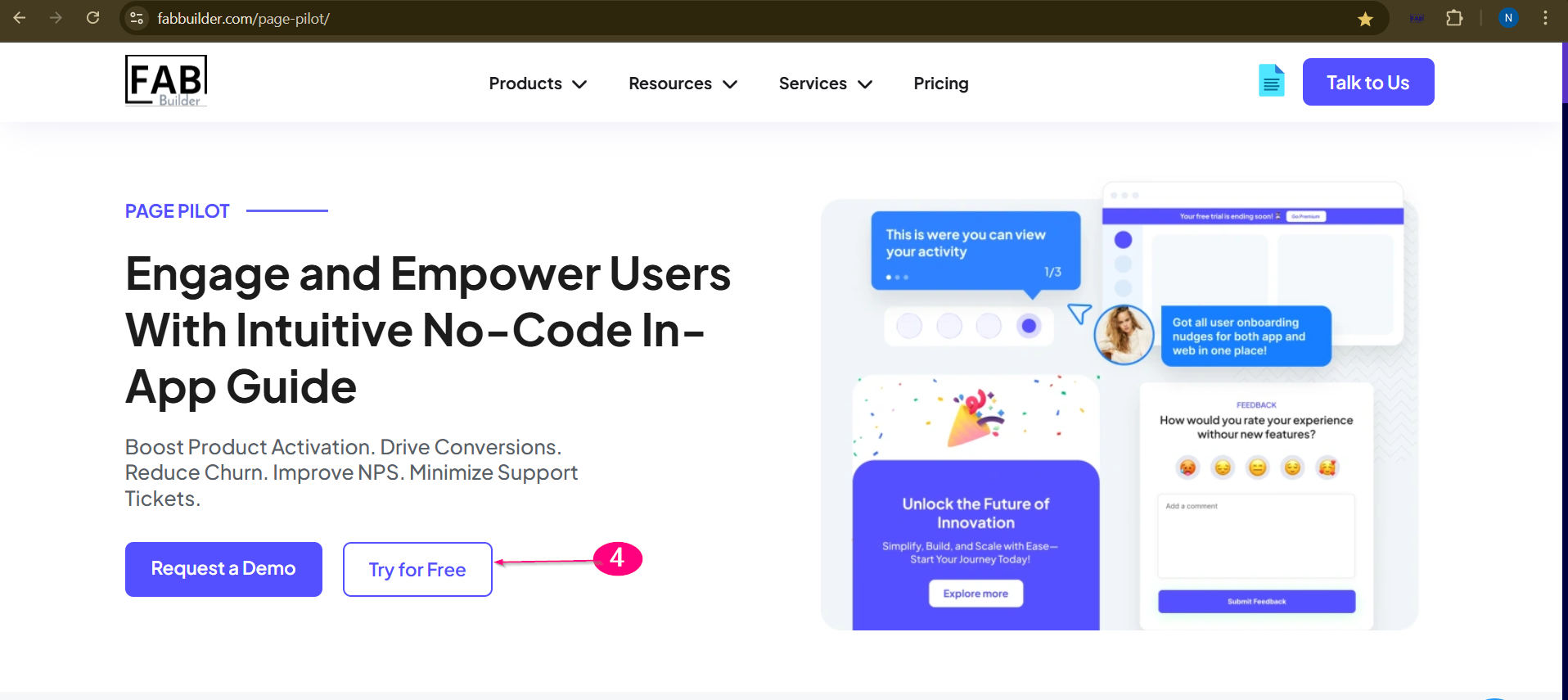 Page Pilot landing page — Try for Free button What's NextAfter clicking Try for Free, you'll land on the sign-up screen. From there:
|